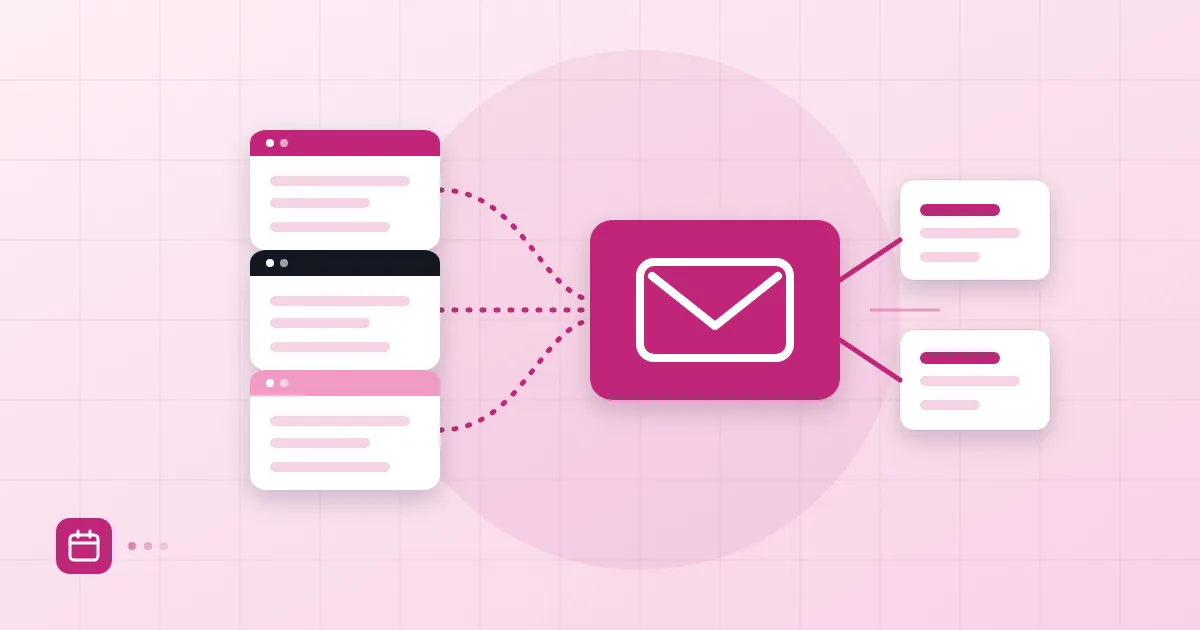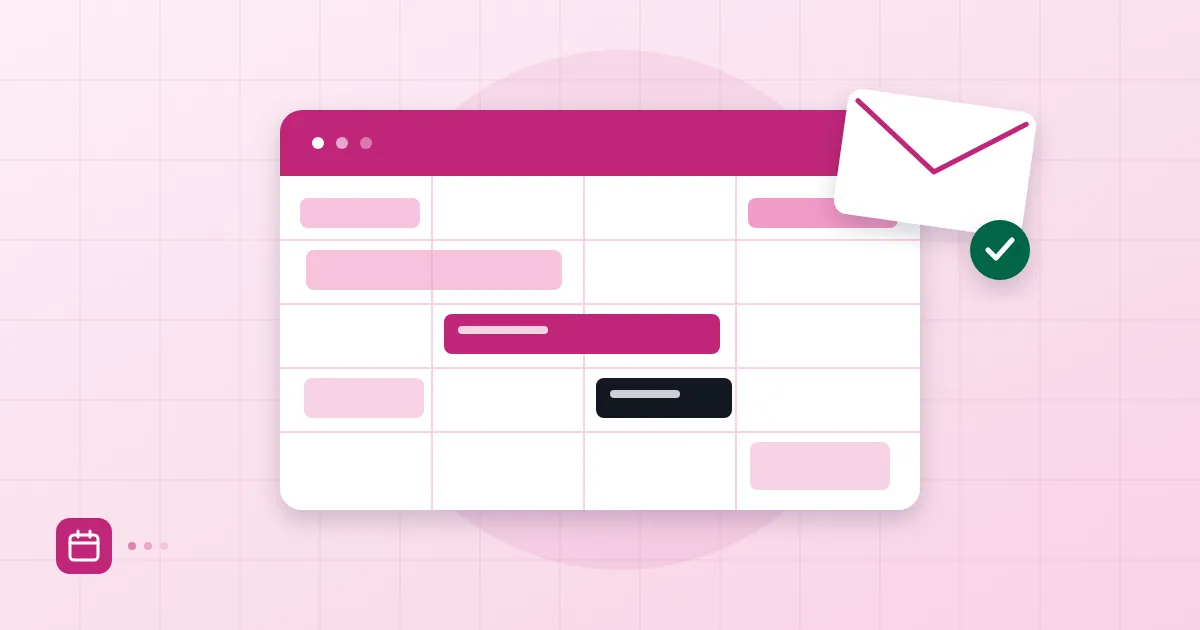
In a five-person office the calendar problem starts as "who is free on Thursday?" and usually ends in a chat group. Two people book the same customer at the same hour, two teams walk into one meeting room, and someone is on leave without anyone knowing. A shared calendar pulls all of that into one place. Set up badly, though, it creates a new mess: either everyone sees everything, or nobody sees anything useful.
Short answer: To set up a shared calendar, first choose the type (team, room or leave), then decide who can only view and who can add events, and finally confirm that sync works on everyone's devices. The most common mistake is giving everybody full edit rights on every calendar.
When do you need a shared calendar?
You need one wherever a piece of information matters to more than one person. If it is only your own meetings, a personal calendar is enough. But if you recognise any of these signs it is time to move: you pass the same schedule to two different colleagues, you keep hearing "who is out in the field this week?", or you tell customers "let me check if we are free and get back to you."
The mistake we see most at setup time is creating the team calendar by "sharing" one person's personal calendar. That person owns it, so when they leave the company, the calendar leaves with them. Attach a team calendar to the team, not to an individual account.
Calendar types: team, room, leave
Separating three types makes permission decisions easier. The table below is the layout we suggest.
| Type | Who can see | Who can add | Typical use |
|---|---|---|---|
| Team calendar | Team members | Team members | Customer calls, delivery dates |
| Room calendar | Everyone | Everyone (by invitation) | Meeting room, demo room |
| Leave calendar | Everyone | Admin or HR only | Holidays and remote-work days |
Team calendar
This shows the shared working rhythm of a unit such as sales, support or engineering. Everyone can add events, but agree a naming rule for titles, for example "Customer - topic - owner". A team calendar without a title convention becomes unreadable within three months.
Room calendar
Create a separate calendar for each meeting room and name it after the room. Anyone booking the room adds that calendar to the invitation. One honest caveat: a room calendar here is a convention, not a resource engine that blocks double bookings by itself, so the discipline of always booking through an invitation is what prevents clashes. Do not hand out more rights than needed; make people check the existing bookings before they add or delete one.
Leave calendar
A leave calendar contains information that can count as personal data. Do not let people write reasons such as "illness"; "out of office" is enough. Limit visibility to the company, and give add rights to HR or managers.
Permission levels and visibility
We find it useful to think about permissions in three steps: seeing only busy or free, seeing event details, and being able to edit. Giving everybody the detail-level view from day one leaks sensitive meetings, such as job interviews or legal discussions. Mark those events as private; even if the calendar is shared, the details stay hidden.
Keep edit rights tight. "Everyone can delete anything" works for a week, then someone removes a meeting by accident and nobody can find it. Calendar data deserves backups just like email. In Postanex, email, calendar and contacts live in one place and mail is backed up daily, but you still have to decide who owns each calendar.
A word on shared addresses as well: if your company has a bookings@ or support@ address, route their invitations the way we describe in our article on aliases and group addresses. An invitation should land in a mailbox the team shares, not in one person's inbox.
The invitation and response flow
A calendar invitation is really an email: it carries a calendar attachment, and the recipient answers accept, tentative or decline. Those replies travel back to the organiser. That means a meeting invitation only works properly if the underlying email is delivered properly. Messages sent from an authenticated domain do not land in spam; for those that do, our article on why mail goes to spam shows how to diagnose them.
Pick up a small habit when you send invitations: separate required attendees from optional ones and put the agenda in the description. Invitations without an agenda are the biggest single cause of postponed meetings.
Syncing with phone and desktop apps
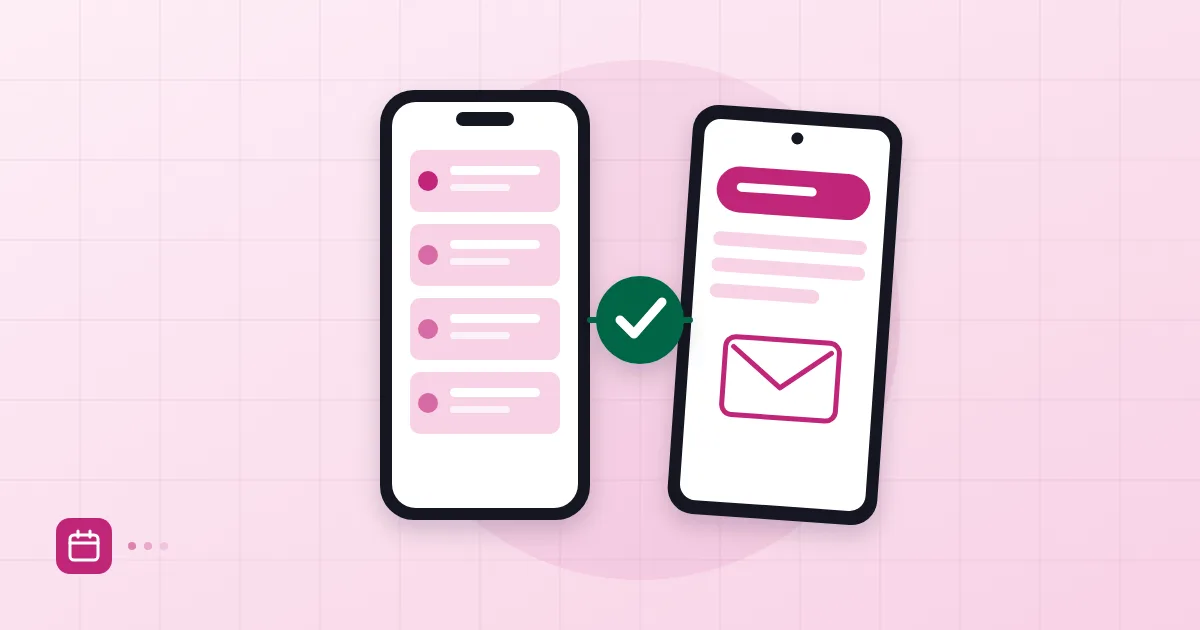
Showing calendars on every device relies on open standards: CalDAV for calendars (see RFC 4791) and CardDAV for contacts. Because Postanex works with these protocols, you can use Outlook, Apple Calendar, an iPhone or an Android calendar app. The desktop steps are in our Outlook account setup guide, and the phone side, including IMAP, calendar and contacts, is in the iPhone and Android setup article.
The sync problem we see most is an account that has been added to the phone with the calendar switch left off. On iPhone, open Settings, find the account and check the Calendars toggle. On Android, make sure the calendar is ticked in the app's account list. After adding a new shared calendar, give the phone a few minutes to refresh.
Time zone and recurring-event traps
Time zones are the sneakiest calendar problem. If some colleagues work from Istanbul and others from abroad, it may not be obvious which time zone an event was created in, and the meeting shifts by an hour. The fix: write the time zone in the title for international meetings, and add the other side's local time to the description.
Recurring events hide two traps. The first is a weekly meeting with a country that observes daylight saving time; the hour drifts for part of the year. The second is changing the whole series when you meant to change one occurrence. When you postpone a meeting just once, choose "this event only". Deleting a long series can be hard to undo.
One more link back to your inbox: calendar notifications arrive as email too, so if you want a tidy mailbox, read our guide to folders, rules and filters. Make sure none of your rules quietly archive calendar replies.
Frequently asked questions
What is the difference between a shared and a personal calendar?
A personal calendar belongs to one person. A shared calendar lets several people see events and edit them according to their rights. A team calendar should never depend on one person's account.
How do I set up a meeting room calendar?
Create a calendar for the room and give everyone permission to see it and add to it. Adding that calendar to every meeting invitation builds the booking habit. The team's rule, not the software, prevents clashes.
Why is the shared calendar missing on my phone?
Usually the calendar sync toggle on the account is off, or the new calendar has not loaded yet. Switch on the calendar option in the account settings and wait a few minutes.
How do I hide private events when sharing a calendar?
Mark the event as private. People viewing the calendar will see that you are busy but not what the event is.
- shared calendar
- team calendar
- CalDAV
- meeting rooms