Telling someone with four thousand unread messages to "build a system" is easy. Doing it is hard, because the load does not come from one place: on one side are people genuinely waiting on a reply, on the other newsletters, notifications and "FYI" copies. Inbox management starts with learning to tell those two groups apart. The tool comes second.
We see this pattern constantly when we work with teams, and the fix is almost never a clever method. Below is a simple setup you can put in place in an afternoon.
Short answer: Check mail at two fixed times a day, keep to three or four folders, let rules sort the repetitive mail automatically, and give every message on a shared address (
info@,support@) a single owner. A short weekly clean-up does the rest.
The problem is habit, not mail
Looking at your mailbox every time a message lands is a habit that fragments work. A notification pops up, you drop what you were doing, and when you come back you have to rebuild where you were. Nobody measures that cost, yet everybody pays it.
So the first rule is two check windows a day: say, once after you have settled in for the morning and once in the afternoon. For anything urgent, use the phone or a chat tool. Email should not be the urgent channel, and you should say so out loud inside the team. Otherwise everyone tries to be disciplined alone, and it does not last.
Also accept this: for most people inbox zero is needless pressure. What matters is not that the box is empty, but that you never miss a message that is waiting on you. Those are not the same thing.
A small, clear folder structure
The more folders you have, the slower every filing decision becomes; before long, deciding where a message goes takes longer than reading it. Three or four folders are enough for most people.
| Folder | Purpose | Emptied when |
|---|---|---|
| Inbox | New, unprocessed messages | After each check window |
| Waiting | Topics where you await someone else's reply | In the weekly clean-up |
| To do | Dated items that need action | When the work is done |
| Archive | Finished things you want to keep | Never; you find them by search |
Treat this table as a map of where messages go, not a task list. Folders per client or per project mostly slow you down; search inside one archive is usually faster. Search works well enough now that deep folder hierarchies are rarely worth the effort.
The exception is correspondence that must be kept apart for legal or financial reasons. A single separate folder makes sense there, and how long to keep it is a different question that depends on your company policy.
Rules and filters
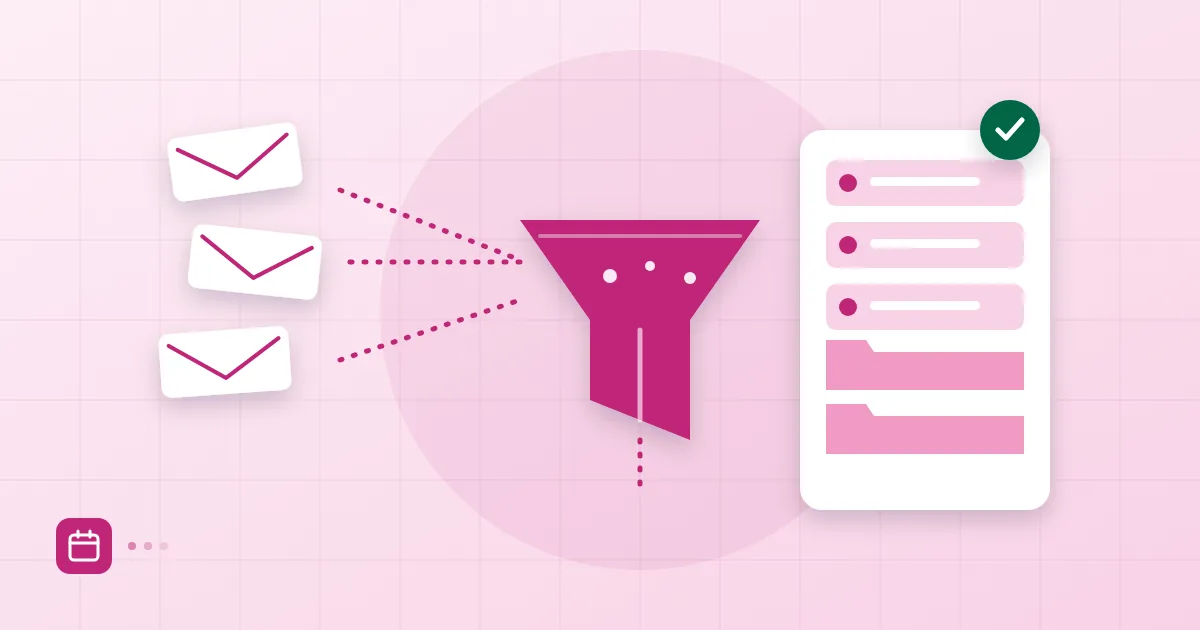
Rules cure the feeling of making the same decision for the third time. If you have moved a message by hand twice, write a rule before the third.
In Outlook it is Home > Rules > Manage Rules & Alerts. In Gmail, open a message, use the three-dot menu and choose "Filter messages like this". In Apple Mail it sits under Mail > Settings > Rules. They all work the same way: a condition (sender, subject, an address on the recipient line) and an action (move to a folder, mark as read, apply a label).
What should go behind a rule? Our preference: send newsletters and automated notifications straight into a "Reading" folder, and let only mail written to you stay in the inbox. A second useful rule catches messages where you are only on Cc; send them to their own folder and skim it once a week.
A warning: the number of rules can also get out of hand. A rule you wrote three months ago and no longer remember can quietly bury an important message. Look through the list once a quarter, and be careful with the "mark as read" action: a message that looks read is a message you will never open.
It also matters whether a rule runs in the client or on the server. Client-side rules only work while the app is open, so mail arriving on your phone lands untouched. If you use several devices, check where the rule runs. We explain how to add an account to several clients in our Outlook and Apple Mail setup guide, and for phones see iPhone and Android IMAP settings.
Who replies on shared addresses
When three people watch info@ or support@, each assumes someone else answered. The result: either nobody replies or the customer gets two different answers. This is the shared-inbox problem we see most.
The fix is organisational, not technical. Every message should have an owner, and that owner should be visible. A simple method: whoever picks up a message marks it straight away, with a label or a short note on the first line saying "mine". In small teams, taking turns on duty for set hours also works.
For the technical side, meaning how mail sent to one address reaches several people, read our article on aliases and group addresses. One more suggestion: keep signatures on replies from a shared address consistent; our email signature guide covers what to watch for in team signatures. Collecting meeting requests in a shared calendar also reduces the back-and-forth by email; see shared calendar setup.
Cutting notifications
The easiest win in this whole setup is switching notifications off. Turn off the new-mail pop-up on your desktop, and the sound and badge on your phone. Looking at your mailbox should be a deliberate act; the system should not summon you.
You can make one exception, for the few senders who might truly be urgent (your manager, a critical customer). Mark them as VIPs or priority senders and leave notifications on for them only. Everything else waits for a check window.
Decide about newsletters promptly, too. If you have deleted a newsletter unread three times, unsubscribe. Closing the source is always cheaper than writing a rule.
A weekly clean-up routine
Fifteen to twenty minutes once a week, set aside for the purpose, is enough. Friday afternoon works well, because last week's open loops are still in your head.
Do it in this order. Empty the inbox: every remaining message is answered, moved to "To do" or archived. Open "Waiting" and write a short nudge on anything that has not been answered. Check the dates in "To do". Finally, if you did something by hand three times this week, write a rule for it.
None of this needs a new tool; your current mail app is enough. What matters is that the team shares the habit. A service that keeps mail, calendar and contacts in one place, such as Postanex, makes it easier to share that routine across a team.
Frequently asked questions
Do I need to reach inbox zero?
No. What matters is not missing a message that is waiting on you, not an empty box. A "Waiting" folder and a "To do" folder give most people enough control.
How many folders are enough?
Three or four for most people: inbox, waiting, to do and archive. Because search works well, detailed hierarchies are rarely needed.
Where do I create email rules?
In Outlook use Rules > Manage Rules & Alerts, in Gmail use "Filter messages like this" from the three-dot menu, and in Apple Mail go to Mail > Settings > Rules. If you use several devices, check whether the rule runs on the server or in the client.
Who should answer mail on a shared address?
Every message needs one owner. Let whoever picks it up mark it as theirs, or let the team rotate duty, so that you avoid both silence and double replies.
- inbox management
- email rules
- filters
- shared inbox
- email productivity