You create a mailbox for a new colleague, hand over the password, and ten minutes later your own phone buzzes: "I can't add it to my phone, it keeps throwing an error." We have lost count of how often that message arrives. Nearly all of these cases trace back to one of three things: the wrong username, a port that does not match the encryption type, or the wrong server name.
This guide walks through setting up business email on iPhone and Android, explains what each setting means, and gives you an order to check things in when it fails. Screen names shift a little between OS versions; the logic does not.
Short answer: On a phone, your username is the full email address, incoming mail uses IMAP and outgoing mail uses SMTP. IMAP normally runs on port 993 with SSL/TLS; SMTP on port 465 (SSL/TLS) or 587 (STARTTLS). Take the exact server names from your email provider's control panel. If your provider offers an iPhone setup profile, it saves you from typing any of these settings.
What to have ready before you start
A five-minute job turns into half an hour mostly because something is missing. Gather these first:
- The full email address (
name@example.com) - The mailbox password, typed carefully if you plan to copy and paste it, since stray characters sneak in
- The incoming (IMAP) and outgoing (SMTP) server names your provider gave you
- A network connection that allows the right ports; some mobile carriers and hotel networks block port 25
- If a two-factor policy is enabled on the mailbox, ask your administrator what extra step account setup needs
A warning about server names. Do not guess something like mail.example.com from your own domain. The provider's server certificate is issued for the provider's own hostname, and a different name makes the phone complain that the server's identity cannot be verified. Always read the values from the panel. If you use Postanex, there is also a ready-made iPhone setup profile, described below.
iPhone: profile-based and manual setup
There are two routes on iPhone, and we suggest the profile first.
Profile setup. Postanex offers a one-tap setup profile for iPhone. You open the profile on the phone and approve it as iOS prompts you, and the account is configured. You do not type the server names, ports or encryption yourself, which makes this the route with the fewest chances for error.
Manual setup. If you are not using a profile: open Settings, go to Mail > Accounts (depending on your iOS version this may sit under Apps), tap "Add Account" > "Other" > "Add Mail Account". Fill in name, email, password and a description. On the next screen choose IMAP and enter the incoming and outgoing server details; in both sections put the full email address in the username field. The phone verifies the account and then asks what to sync: Mail, Notes and anything else on offer.
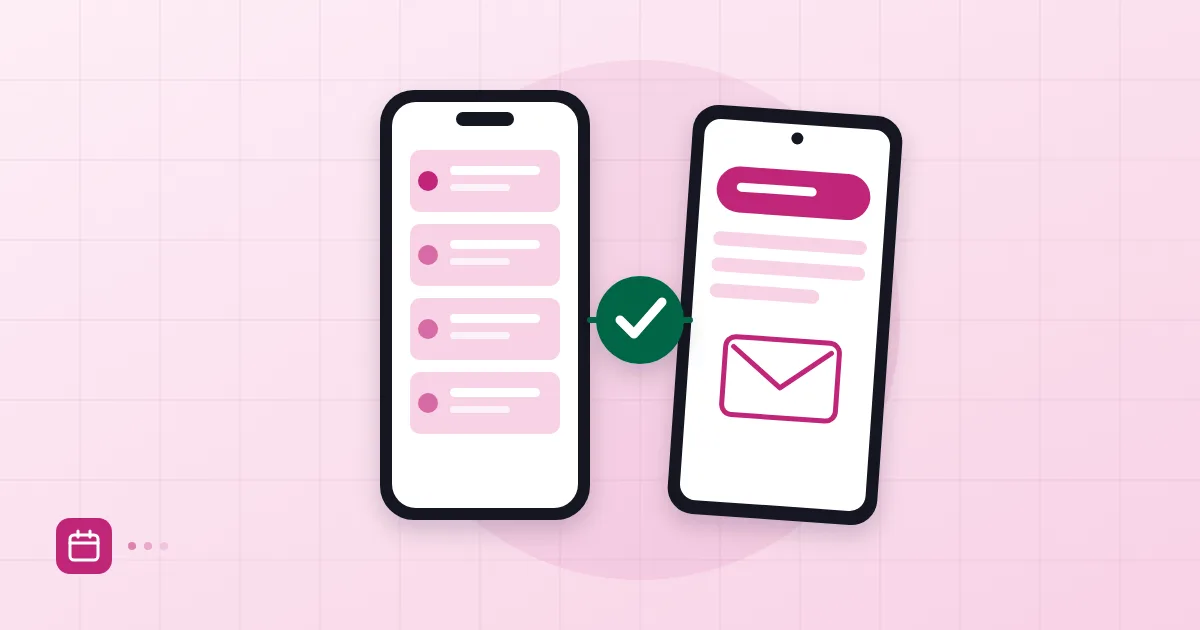
Run one test when you finish: write a new message in Mail and send it to yourself. If it arrives in your inbox, both the incoming and outgoing servers work.
Android: the Gmail app and other apps
On Android the most common route is the Gmail app, which despite its name accepts IMAP accounts from other providers.
Open Gmail, tap your profile picture in the top right, choose "Add another account" and pick "Other." Enter the email address, choose "Personal (IMAP)" and type the password. In the incoming server settings make sure the username is the full email address, the server is the IMAP address from the panel, the security type is SSL/TLS and the port is 993. For outgoing, tick "Require sign-in" and enter the same username and password.
If you prefer Samsung Email, Outlook mobile or Thunderbird, the same values apply; only the interface changes. For desktop clients, see our guide on adding accounts in Outlook and Apple Mail, which covers IMAP plus CalDAV and CardDAV.
IMAP, SMTP, ports and encryption
Knowing these three terms rescues you when something goes wrong.
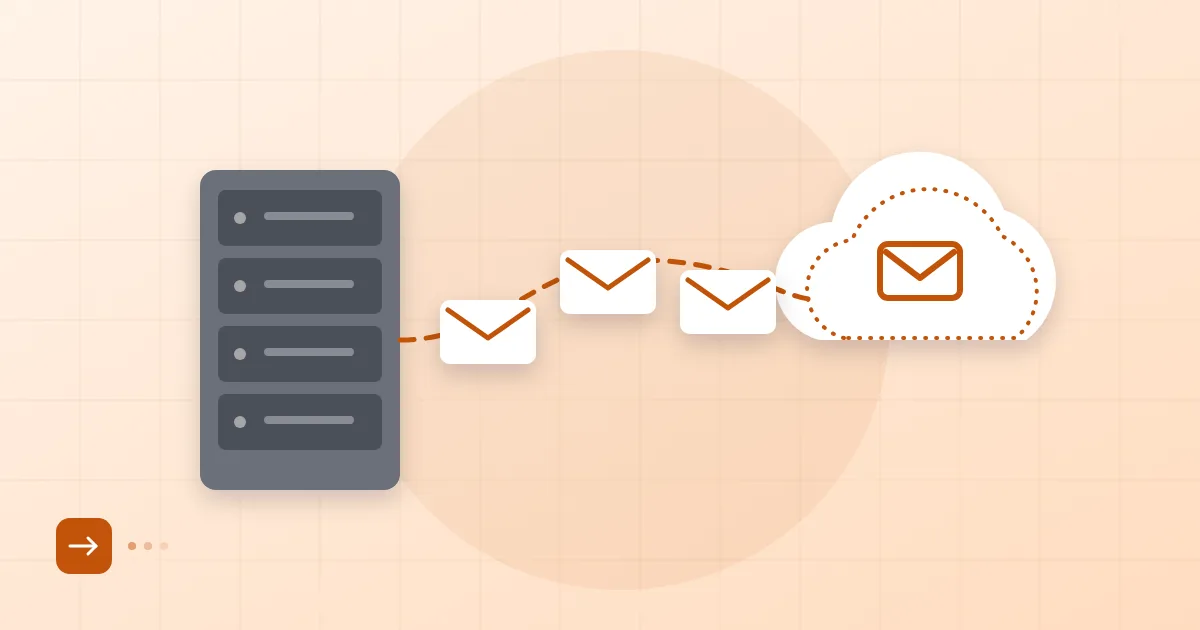
IMAP keeps incoming mail on the server and your phone only displays it. You can open the same mailbox on the phone, a laptop and webmail and see the same folders and the same read status everywhere. The current specification is RFC 9051. SMTP hands outgoing mail to the server; your phone sends each message over SMTP.
On ports and encryption, this table is the reference:
| Purpose | Port | Encryption | Note |
|---|---|---|---|
| IMAP (incoming) | 993 | SSL/TLS | Recommended |
| SMTP (outgoing) | 465 | SSL/TLS | Recommended; the connection is encrypted from the start |
| SMTP (outgoing) | 587 | STARTTLS | Common alternative |
| SMTP (outgoing) | 25 | Usually none | Server-to-server; do not use on a phone |
The reasoning behind these defaults is set out in RFC 8314, which recommends encrypted-from-the-start connections for mail clients rather than plaintext. The final word still belongs to your provider's panel. If port and encryption do not pair up, for instance choosing STARTTLS on 993, the connection simply times out with no helpful message.
Syncing calendar and contacts
Mail is half of it; calendar and contacts belong on the phone too. Postanex supports the standard CalDAV and CardDAV protocols, so both can be connected.
On iPhone, if you set up manually, add the calendar and contacts separately under "Other" using "Add CalDAV Account" and "Add CardDAV Account." On Android the Gmail app only fetches mail; for calendar and contacts you need an app that speaks CalDAV/CardDAV, such as DAVx5. And if your inbox gets noisy once everything flows to your phone, our piece on organising your inbox with folders and rules shows a setup that keeps it manageable.
Shared addresses such as info@ or support@ raise a separate question: which address do replies come from? Email aliases and group addresses explains the options.
Common errors and their fixes
Work through this list in order; the first three items solve most cases.
"Username or password incorrect." The usual cause is a username entered as just name. It must be the full address (name@example.com). A trailing space may have come along with a pasted password, so try typing it. If the password was changed recently, update the saved one on the phone too.
"Cannot connect to server" or an endless spinner. The port and encryption do not match. Is it SSL/TLS for 993, STARTTLS for 587? Also check the server name for typos.
Certificate warning. The server name is not the one your provider issued. Enter the name from the panel rather than one derived from your own domain.
Mail arrives but will not send. SMTP authentication is off or wrong. Make sure outgoing settings contain the username and password, and move from port 25 to 465 or 587 if you used it.
Messages arrive late. The phone may be fetching on a schedule rather than receiving instant pushes. Check the fetch interval in the account settings and make sure battery saver is not throttling the app.
Your sent mail lands in junk at the other end. That is not a phone problem but a matter of your domain's authentication records. Our business email setup guide explains why SPF, DKIM and DMARC are needed in the first place.
And if you are coming from a personal Gmail account, read moving from Gmail to business email before configuring the phone, and do not delete the old account the moment the new one works.
Frequently asked questions
Which settings do I enter to add business email on iPhone?
Use your full email address as the username, the IMAP address for incoming mail and the SMTP address for outgoing. IMAP is typically port 993 with SSL/TLS, and SMTP port 465 (SSL/TLS) or 587 (STARTTLS). The exact values are in your email provider's panel.
Do I need a separate app for work email on Android?
No. The Gmail app can add any IMAP account through the "Other" option. If you also want calendar and contacts to sync, you need an extra app that supports CalDAV and CardDAV.
Should I use IMAP or POP3?
IMAP if you use a phone and a computer together. POP3 downloads mail to one device and usually removes it from the server, so each device shows something different. We only recommend it for old single-device setups.
I lost my phone. Is my mail safe?
Because mail lives on the server, losing the phone is not the same as losing the mail. Still, change the password straight away and wipe the device remotely; use a screen lock and two-factor authentication on the phone going forward.
- iPhone
- Android
- IMAP
- SMTP
- mobile email