"I sent it, they never got it." We hear some version of that every week, and nine times out of ten the answer sits in the half of the message nobody looks at: the headers. Email header analysis means swapping guesses for evidence. Which servers handled the message, where it sat waiting, and what the receiving side concluded about SPF, DKIM and DMARC are all written down, line by line.
Headers look intimidating, yet they repeat the same handful of patterns. We will walk through them using a made-up example.com.tr message.
Short answer: Open the raw headers of the message as received, read the
Receivedlines from bottom to top to locate delays, and check theAuthentication-Resultsline forspf,dkimanddmarc. If all three saypass, authentication is not your problem; look at content, sender reputation or the recipient's filters.
What email headers are and how to view them
Headers are the block of text that sits above the message body, and every server that touches the message adds its own note. RFC 5322 defines the format of these fields. Most people never see them, which is exactly why they are the first place to look when something goes wrong.
How you reach them depends on the client. In Gmail, open the message, click the three dots at the top right and choose "Show original". In classic Outlook for Windows, double-click the message so it opens in its own window, then go to File > Properties and read the "Internet headers" box. In Apple Mail, use View > Message and pick "All Headers" or "Raw Source". Outlook on the web has "View > View message details" in the three-dot menu.
One rule matters more than the menu path: always pull headers from the recipient's copy. The copy in your own Sent folder is the message as it was before it left, and it tells you nothing about the journey. This is the most common mix-up we see.
The Received chain: finding delay
The Received lines trace the route, and each server stacks its line on top of the existing ones. So you read the chain from the bottom up: the lowest line is the first hop, the top line is the recipient's own server.
Received: from mx1.example.com.tr (mx1.example.com.tr [203.0.113.25])
  by mx.google.com with ESMTPS id a1b2c3
  for <jane@example.net>; Mon, 16 Nov 2026 09:14:07 +0300
Received: from mail.example.com.tr (localhost [127.0.0.1])
  by mx1.example.com.tr with ESMTP id d4e5f6;
  Mon, 16 Nov 2026 09:14:02 +0300
Compare the timestamps of two neighbouring lines. Five seconds here, which is fine. If you are chasing a delay, find the pair where minutes or hours open up. The server on the older side of that gap is the one that held the mail: a full queue, greylisting, or a security gateway that scanned the content.
Two traps. Clocks on different servers drift, so a gap of a couple of seconds is noise, not delay. And time zones: if one line says +0300 and another +0000 and you forget to convert, you will "discover" a three-hour delay that never existed.
Check the bottom line too. If the message originated at a server you do not recognise, perhaps a marketing tool or an old hosting account, you have just found the source missing from your SPF record.
The Authentication-Results line
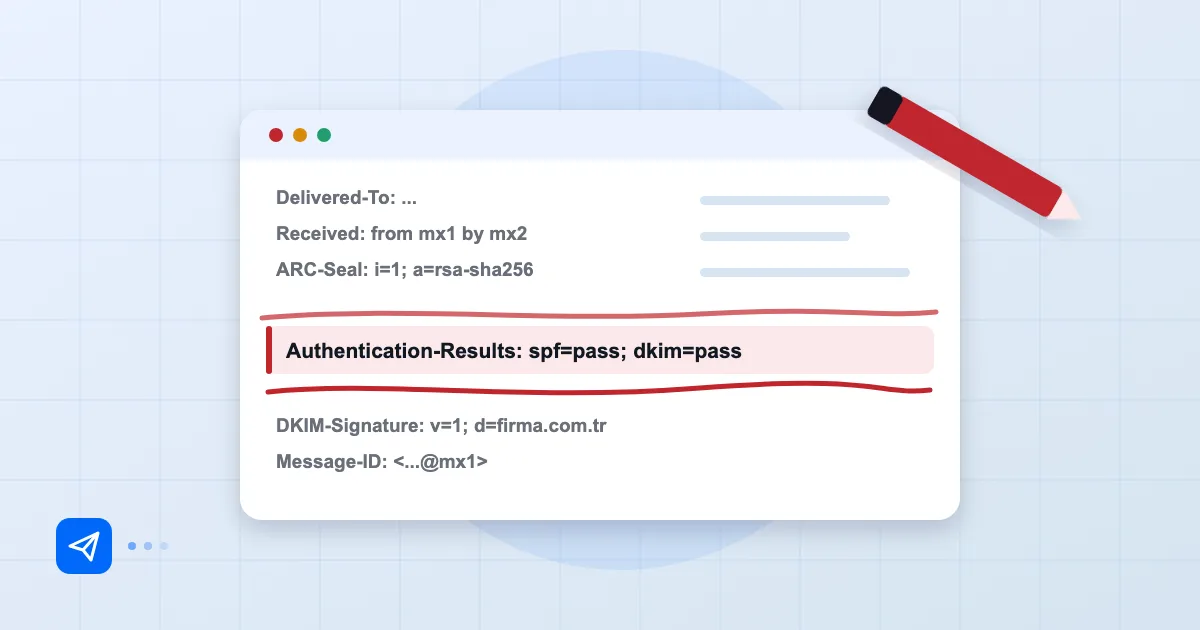
When a receiving server accepts a message, it summarises its authentication checks in one header, in the format described by RFC 8601. A healthy one looks like this:
Authentication-Results: mx.google.com;
  spf=pass smtp.mailfrom=example.com.tr;
  dkim=pass header.d=example.com.tr header.s=s1;
  dmarc=pass header.from=example.com.tr
Read each method on its own. spf=pass means the IP that delivered the mail is authorised in the SPF record of the smtp.mailfrom domain. dkim=pass means the signature verified, and header.d names the domain that signed. dmarc=pass is the one that counts most, because it says that at least one of SPF or DKIM aligned with the domain in the visible From address.
Here is the classic puzzle: SPF pass, DKIM pass, DMARC fail. The cause is alignment. A third-party sending service signs with its own domain and uses its own envelope sender, so both checks pass, but neither matches example.com.tr. The fix is to configure the service to sign with your domain. If you are still setting up the policy itself, our step-by-step DMARC record guide covers it.
| Result | Meaning | Look first at |
|---|---|---|
| pass | Check succeeded | Nothing to do |
| fail | Record exists, message does not match | Sending IP or signature |
| softfail | SPF ~all warning |
Sources listed in SPF |
| neutral / none | No record or no opinion | Whether the DNS record exists |
| temperror / permerror | Temporary DNS issue or a syntax error | Record syntax, lookup limit |
Spam scores and labels
A message can pass authentication and still land in spam, and the hints are usually in extra headers. Fields such as X-Spam-Status, X-Spam-Score and X-Spam-Flag come from SpamAssassin-style filters. Gmail and Microsoft keep their verdicts in less transparent fields; on the Microsoft side you will see the X-Microsoft-Antispam family. None of this is standardised, so check what a given server's documentation says before deciding that a number is "high".
Our habit is to ignore the score and read which rules fired. If the list mentions a shortened URL in the body or a heavy HTML-to-text ratio, the thing to fix is the content, not the infrastructure. Our article on why mail lands in spam draws that line in more detail.
Sending a test message
You do not have to read headers only after a failure. Every time you change something (a new DNS record, a new sending service, a stricter DMARC policy) send yourself a test.
A simple setup: keep addresses at two different providers that you control, say a Gmail and an Outlook.com account. Send a short message from your company address to both, open the headers on the receiving side and look at the three fields above. Same result at both providers? Good. Different? The difference points at the problem. If the domain is new, reputation matters too, and we describe the warm-up side in sending from a new domain.
There are also online "email test" tools that give you a one-off address and show a scored report. They are handy, but remember they are reading the same headers you can read. Learning to verify the result with your own eyes is the more durable habit.
Turning findings into fixes
A short mapping is enough. A long wait in the Received chain: talk to the owner of that server or check queue settings. SPF fail: add the sending IP to the record or stop sending from the wrong source. DKIM fail: check whether something altered the body after signing, such as a security gateway adding a footer or a forwarder rewriting content. For what forwarding does to authentication, see ARC and email forwarding.
For rejected mail you will have an error code instead of a delivered header; we explain codes like 550 5.7.1 in our bounce codes guide. Read the two together and the picture is complete: the code tells you why, the header tells you where.
Frequently asked questions
Where can I see the email headers?
Open the message in the recipient's mailbox and find the option that shows raw headers: "Show original" in Gmail, File > Properties in classic Outlook, View > Message > All Headers in Apple Mail. The copy in your Sent folder will not help.
Why do I read the Received lines from the bottom up?
Each server adds its line above the existing headers, so the bottom line is the first hop and the top line is the last. You find a delay by comparing the timestamps of two neighbouring lines.
SPF and DKIM pass but DMARC fails. Why?
DMARC needs alignment, not just a pass: the domain in SPF's smtp.mailfrom or DKIM's header.d has to match the visible From domain. A third-party service signing with its own domain passes both checks without aligning.
I cannot find a spam score in the headers. Is that normal?
Yes. Those fields are not standardised, each provider marks its verdict differently, and some show nothing at all. If the authentication results are visible, that is usually enough for diagnosis.
- email headers
- Received
- Authentication-Results
- SPF
- DKIM
- DMARC