Business email setup sounds like an IT project, and for a lot of owners it ends up postponed for months. The idea behind it is small. You already own a domain name, you point that domain's mail traffic at a mail service, and inside the service you create mailboxes such as name@yourcompany.com. The only step that feels technical is the DNS screen, and what you do there is add a handful of records.
When we help teams get started, the delays almost never come from difficulty. They come from doing things in the wrong order. The sequence below is meant to remove those stalls.
Short answer: To set up business email, confirm you control your domain's DNS, choose a mail provider, add the MX, SPF, DKIM and DMARC records the provider gives you, then create mailboxes and connect phones and desktops. In the right order it is usually a same-day job; the only waiting is DNS propagation.
What business email is and why a free address falls short
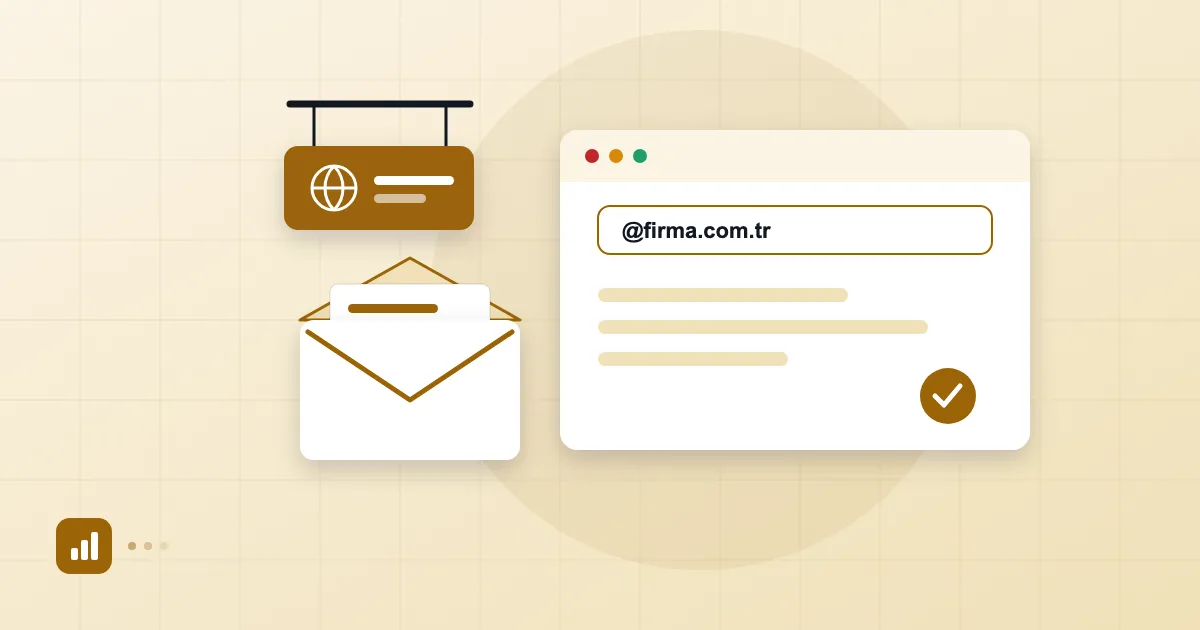
Business email is email whose address ends in your company's own domain, such as sam@yourcompany.com. The company owns the account, not the individual: an administrator creates the mailbox, resets the password and closes it when the person leaves.
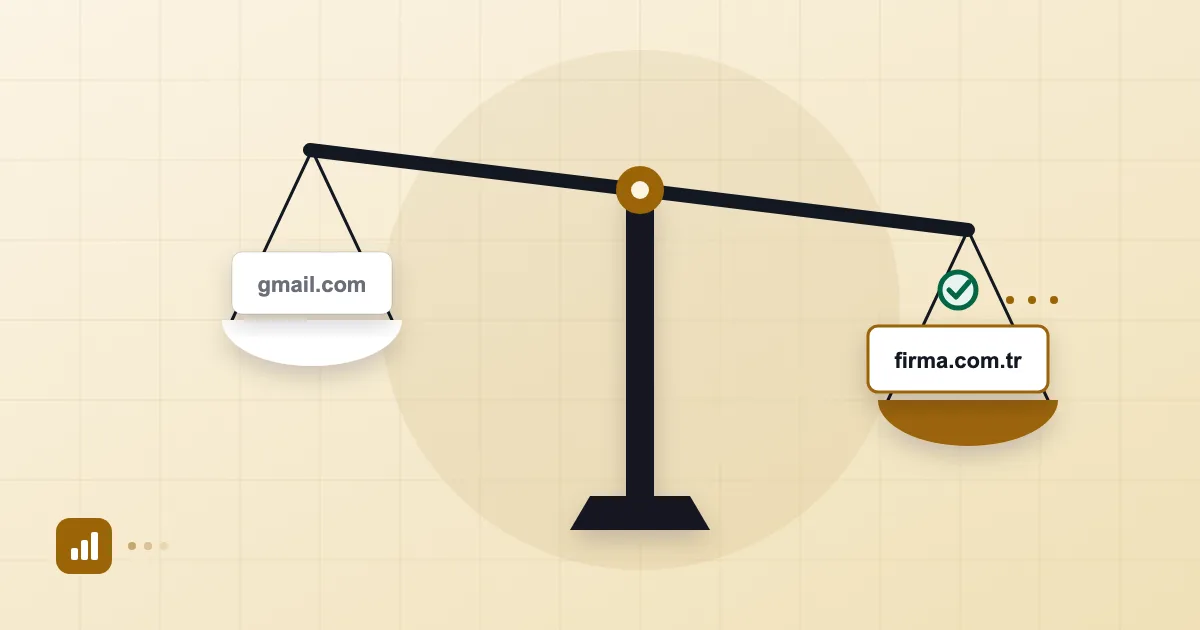
Two practical consequences follow. The first is trust. When a customer receives a quote from a free webmail address, they cannot tell whether it really came from your company. The second is continuity. When someone resigns, the correspondence stays with the company instead of walking out with them. On a free personal account both of those belong to the employee. We compare the two options directly in Gmail vs business email.
Before you start: domain ownership and DNS access
Ask yourself who the domain is registered to, and at which company. It might be GoDaddy, Namecheap, Cloudflare or a local registrar; in Turkey that is often Natro or Isimtescil, with .com.tr names common. In some firms the agency that built the website registered the domain under its own account. That is the single most common blocker we see: the person who can edit DNS is not inside the company.
Settle two things. Does your company own the domain, and who holds the login to the panel where DNS is edited? DNS is sometimes managed at the registrar and sometimes delegated to a separate service. To see where it lives, run this:
dig NS example.com +short
The name servers returned tell you where DNS is actually served. If you add records at the registrar but the name servers point somewhere else, nothing you add will take effect. It is a surprisingly frequent mistake.
If you have no domain yet, get one first. Our post on choosing a domain for email covers the options.
Six criteria for choosing a provider
Sticker price is a poor way to pick a mail service. These six questions tell you more:
| Criterion | What to ask |
|---|---|
| Data location | Which country are mailboxes stored in, and are they encrypted? |
| Backups | Can deleted or damaged mail be restored? |
| Authentication | Does the service guide you through SPF, DKIM and DMARC? |
| Migration | Are old mail and contacts imported, and does delivery stay up meanwhile? |
| Administration | Is it easy to add users, suspend them, set aliases and groups? |
| Support | Can you reach a person when you get stuck? |
Price matters, of course, but a per-user figure on its own misleads; we work through the full arithmetic in business email pricing. Data location is the one that is a precondition rather than a bargaining point, especially if your customers are public bodies or banks, or if you are under a data-protection regime that cares where mail sits.
What MX, SPF, DKIM and DMARC records do
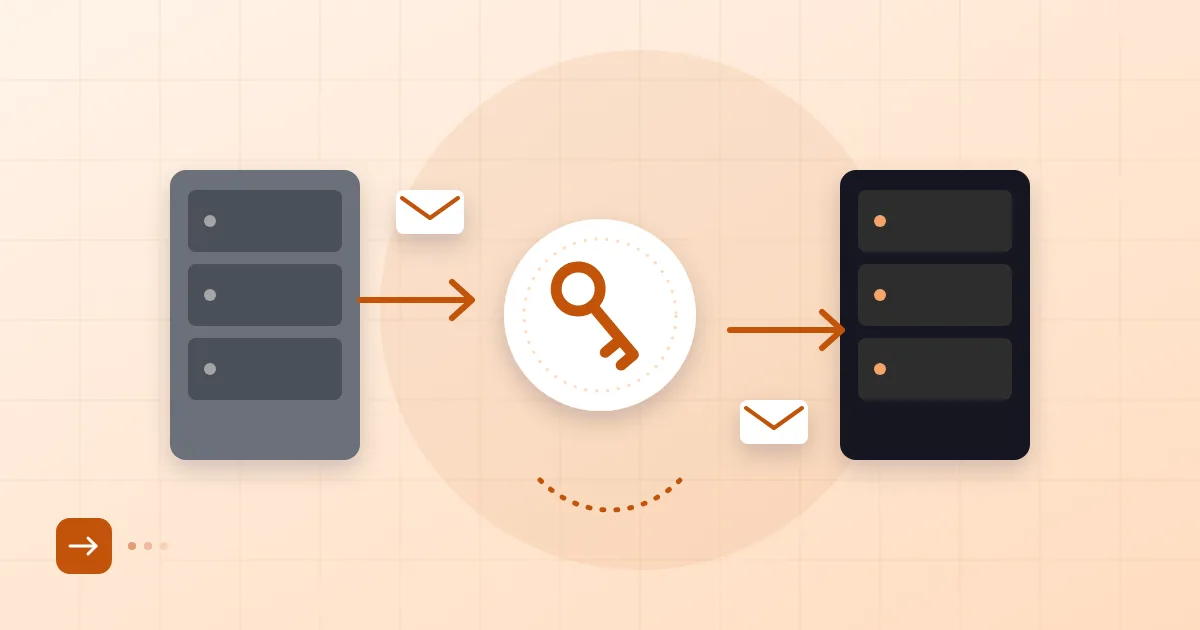
These four records are the bridge between your mail service and your domain. All are text entries in DNS.
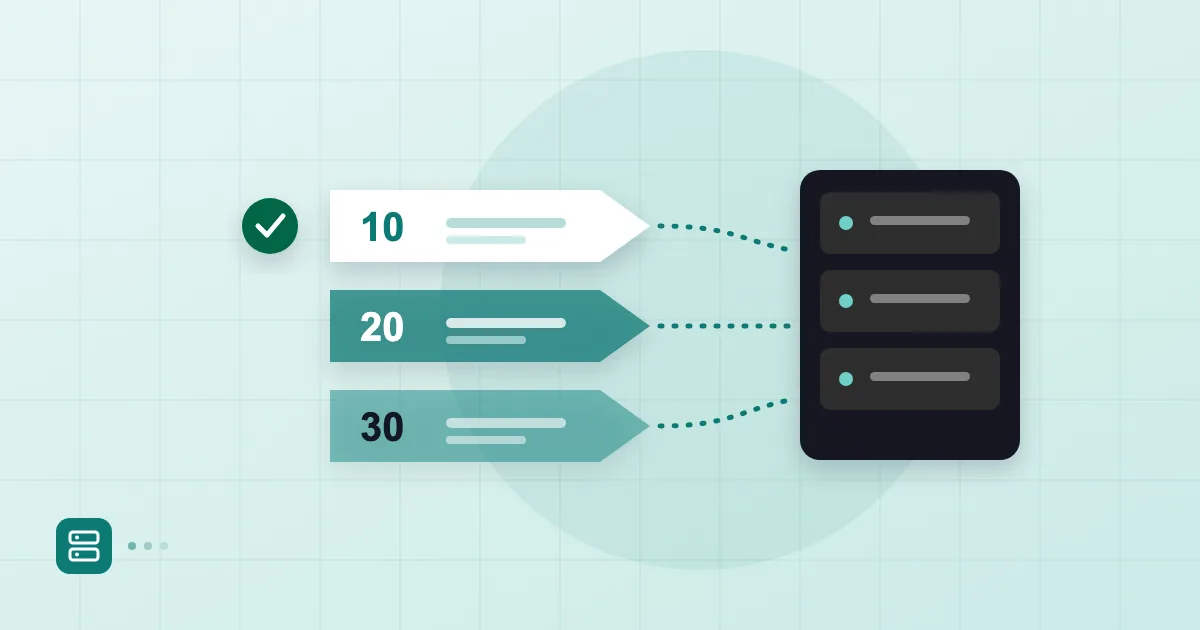
An MX record tells the world which server should receive mail for your domain. Get it wrong and mail either never arrives or lands on your old server. A useful thing to know: MX is independent of your website, so changing it does not touch the site.
SPF lists the servers allowed to send mail for your domain. DKIM attaches a cryptographic signature to each outgoing message, which receivers check against a public key in your DNS. DMARC tells receivers what to do with mail that fails those checks and where to send you reports. We go deeper in how to write an SPF record and DMARC setup. In rough shape they look like this:
example.com.                       MX   10 mx1.mailservice.example.
example.com.                       TXT  "v=spf1 include:spf.mailservice.example -all"
sel1._domainkey.example.com.       TXT  "v=DKIM1; k=rsa; p=MIIBIjANBg..."
_dmarc.example.com.                TXT  "v=DMARC1; p=none; rua=mailto:dmarc@example.com"
Your provider supplies the real values; the lines above are invented purely to show the format. One warning: do not publish p=reject on day one. Start with p=none, read the reports, then tighten.
To check that a record is live:
dig MX example.com +short
dig TXT _dmarc.example.com +short
DNS changes can show up within minutes or take a few hours. A provider that runs a live check next to each record makes the waiting easier, because you just watch for the green tick.
Creating your first mailboxes and aliases
With the records in place, create the mailboxes. Adding a user usually means a name, an address and a password. Think about the address pattern up front: firstname.lastname@ or firstname@? Pick one and use it for everybody. Changing it later means confusion and lost mail.
For shared addresses like info@, support@ or sales@, we recommend an alias or a group rather than a separate mailbox. Several people see the incoming mail and nobody shares a password. The differences are laid out in aliases and group addresses. Also keep the administrator account for administration; create a separate everyday user for yourself.
If you are coming from an existing address, schedule the import of old mail and contacts for the day you open the new mailbox. People leaving a personal Gmail account can follow moving from Gmail to business email.
Connecting phones and desktops, then testing delivery
Once mailboxes exist, add them to devices. Outlook, Apple Mail, the Gmail app, iPhone and Android all work with standard IMAP and SMTP, and there is webmail too. Stuck points are usually the wrong username (it must be the full address), an old port or a mismatched encryption setting.
Test with three messages. Send from your mailbox to another mailbox of yours, then to an outside address such as a personal webmail account, then have the outside address reply. Open the original message source and look for SPF and DKIM passing. If the very first message lands in spam, that points to an authentication problem; we trace the diagnosis in why emails go to spam.
Where Postanex fits
Postanex leaves your domain where it is registered, so you only add a few DNS records. There are screenshot guides for Cloudflare, GoDaddy, Natro and Isimtescil, plus live DNS checks until every record turns green. Data is stored encrypted in data centres in Turkey, and outgoing mail is DKIM-signed. If you get stuck during setup, the support team helps.
Frequently asked questions
Do I need a domain name to set up business email?
Yes. Business email means an address that ends in your own domain, so without a domain you cannot create name@yourcompany.com. You can buy one from any registrar.
Can I use business email if my website is hosted elsewhere?
Yes. The MX record that routes mail is separate from the A record that points to your website. Changing MX does not affect the site, though it is wise to export a copy of your existing DNS records first.
How long does setup take?
Adding the records takes under an hour. DNS propagation can take from minutes to a few hours. If you are importing old mail, that part depends on how much mail there is.
Do I need extra security settings?
We recommend publishing SPF, DKIM and DMARC. Google's own email sender guidelines expect authenticated mail, and so do most large receivers.
- business email
- custom domain
- DNS
- MX record
- mailbox