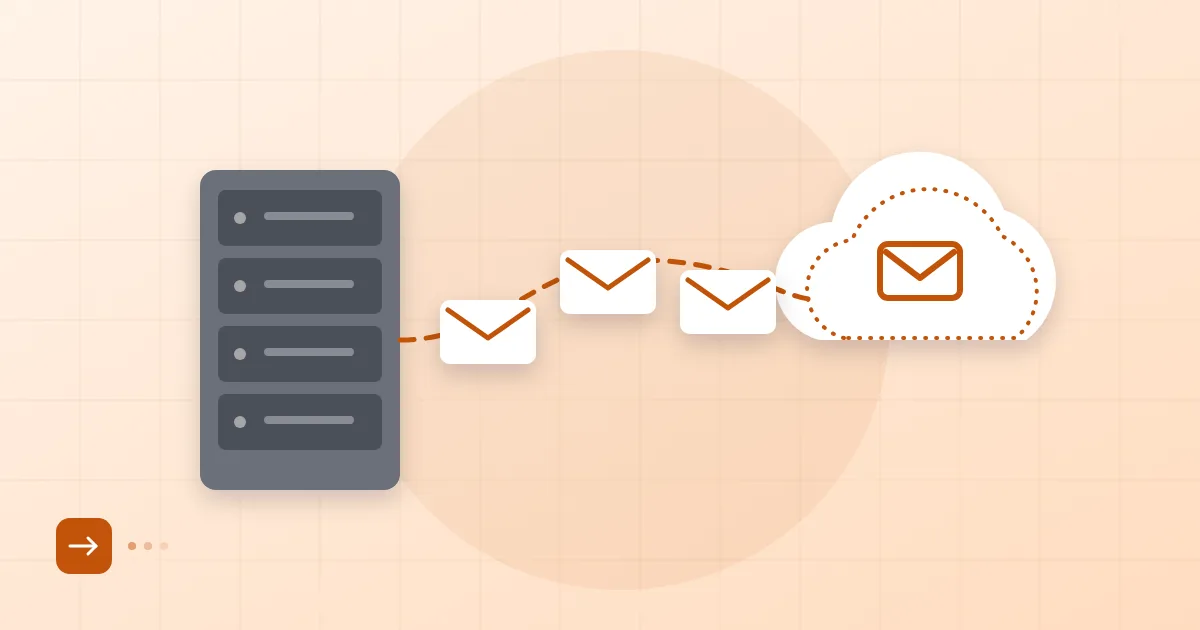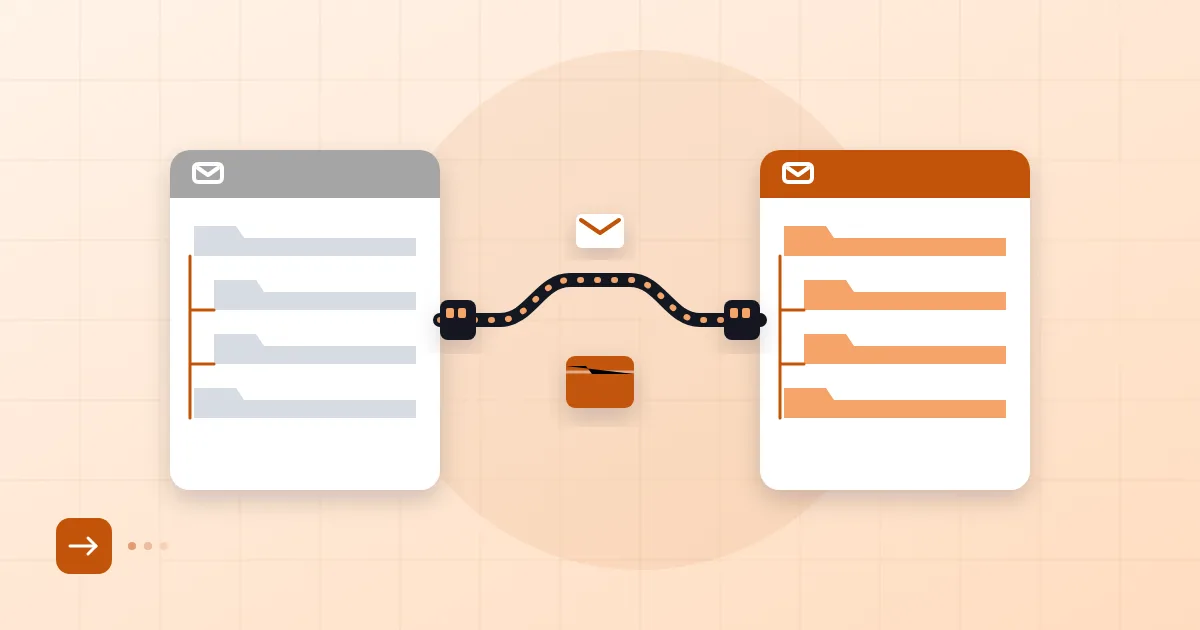
A lot of small companies pay for a full Microsoft 365 suite and use exactly one piece of it: Exchange Online. Mail, a calendar, a couple of shared addresses. Nobody opens Teams, one folder lives in SharePoint, and the per-user bill arrives every month regardless. If that sounds familiar, this is the plan we hand to teams who want to migrate from Microsoft 365 without losing mail or surprising their staff.
Short answer: To migrate from Microsoft 365, first list the services you actually use, copy mailboxes to the new provider over IMAP, switch the MX record last, and end the licence only after the new system has run cleanly for a while. Shared mailboxes, server-side rules and calendars do not move on their own and need a manual plan.
Identify which services you really use
Leaving Exchange Online starts with an inventory, because the licence bundles more than mail. In the admin centre (admin.microsoft.com), open Users, check which licence each person holds, then use the usage reports to see who has touched what in the last 90 days. The most common surprise we see during exits: "we only use email," followed by someone's OneDrive turning out to hold years of signed contracts.
Sort what you find into three buckets. Mail, calendar and contacts will move. Files in OneDrive and SharePoint need their own export or a new home. Teams chats and meeting history do not come along with a mailbox migration, so decide separately whether you need them. Cancel before you have done this inventory and you may lose data that is hard to get back.
Shared mailboxes, distribution lists and rules
Shared mailboxes, distribution lists and inbox rules are what migration tools miss most often, because they are Exchange configuration rather than mail content.
In the Exchange admin centre, export the list of shared mailboxes and groups under Recipients. For each one answer three questions: who are the members, who can send as or on behalf of it, and does it hold history worth keeping? On the new platform, shared addresses are usually rebuilt as aliases or groups; we explain the difference in our post on email aliases and group addresses. A shared mailbox with years of correspondence should be treated like a temporary user and copied separately.
Rules are the quiet trap. Server-side rules such as "anything sent to billing@ goes into this folder" will not travel. In Outlook, open File, Manage Rules & Alerts, screenshot each rule, and rebuild the logic later. Asking users to note down their own rules before cutover prevents a good share of day-one support tickets.
Method: IMAP versus export
There are two common ways to move mail content, and both work. Which one fits depends on how many mailboxes you have and how large they are.
| Method | Best for | Watch out for |
|---|---|---|
| IMAP copy | Most teams, live mailboxes | Needs credentials or an app password; folder structure is preserved |
| PST export | One-off archives, departed staff | Manual, slow on large files, needs a separate import on the new side |
For IMAP, IMAP access must be enabled on the Microsoft 365 side; admins sometimes disable it per user, so check that first. Second check is authentication: with multi-factor authentication enabled, a normal password will not work and you will need an app password or a temporary exception. We cover the commands in our guide to migrating email over IMAP.
We would not make PST your main method. Files corrupt, large mailboxes take hours, and every user has to import by hand. We use PST in two situations: when an employee has left and the mailbox is being closed, and when someone wants a cold archive "just in case."
With Postanex, folders, mail and contacts can be moved from Gmail, Outlook (Microsoft 365) or an existing hosting provider, and mail flow is not interrupted during the move. The order below applies wherever you go.
Contacts and calendars
Contacts and calendars are a second job, separate from mail. Export contacts from Outlook as CSV or vCard and import them into the new mailbox; if your new provider migrates contacts for you, let it, since that avoids field-mapping mistakes.
Calendars need more care. Recurring meetings, attendee lists and room resources are the items most likely to break. A practical path: each user exports their own calendar as an .ics file, imports it into the new system, and organisers of recurring meetings resend those invitations once. For team calendars, see our notes on setting up shared calendars. Avoid cutting over on a Monday; that is when the most invitations collide.
MX cutover and when to end the licence
The MX record is the last step, not the first. The order is: mailboxes ready at the new provider, content copied, users have logged in and tested. Only then do you touch MX.
The day before, lower the TTL on the existing MX record:
example.com. 300 IN MX 0 example-com.mail.protection.outlook.com.
On cutover day, replace it with the values the new provider gives you. Senders who still cache the old record may deliver to the old system for a few hours, so do not delete old mailboxes immediately. Update your SPF record too: the include:spf.protection.outlook.com mechanism has to go or be replaced, or your outbound mail will fail authentication. For timing details see our zero-downtime migration plan.
When should you end the licence? Our rule is at least one full working week after the MX switch, until mail flows normally and no new messages are landing in the old mailboxes. Microsoft deletes a user's data some time after the licence ends, and the exact period depends on your subscription, so confirm it in Microsoft's current documentation before you cancel.
Refreshing Outlook profiles
Most support tickets after migration come from one thing: the desktop Outlook is still pointed at the old Exchange account. Add the new account through File, Add Account, remove the old one and restart Outlook. If a stale OST cache causes trouble, creating a fresh profile from the Mail applet in Control Panel is the cleanest fix. Our walkthrough on adding an account to Outlook covers IMAP, CalDAV and CardDAV.
If you are still choosing a destination, our comparison of Google Workspace, Microsoft 365 and regional email lays the options side by side, and the piece on Google Workspace alternatives covers smaller-team options. The logic is nearly identical when you move from Gmail. See our pricing for plans.
Frequently asked questions
What happens to my old mail when I leave Microsoft 365?
Once the licence ends, the mailbox and its content are deleted after a retention period. Copy everything over IMAP first, take a PST backup if you want a safety net, and cancel only afterwards.
Do shared mailboxes migrate automatically?
No. They are usually copied like a separate account, or rebuilt as aliases or groups on the new platform. List their members and send-as permissions beforehand.
Will email stop during the migration?
Not if you do it in order: copy content, lower the TTL ahead of time, switch MX last. For a few hours both systems may receive mail, which is normal.
Is PST or IMAP better?
IMAP for live mailboxes, because it keeps folders and runs in bulk. PST suits one-off archives and mailboxes of people who have left.
- Microsoft 365
- Exchange Online
- email migration
- PST
- IMAP